2 billion people use spreadsheet programmes worldwide. That’s right, programmes such as Excel have dominated various industries and have quickly become a daily necessity. By improving your Excel skills, you could apply for more workplace opportunities, take on more challenging tasks, develop a more productive workflow, and even earn more cash. But where do you begin? Learning new applications can be a daunting task for most people. That’s why we’ve developed an easy-to-follow Excel guide. We’ll cover what skills you need to know and give you valuable information on functions, shortcuts and the best online courses to consider. Ready? Let’s get started.
Why is it important to learn Microsoft Excel?
For those that don’t know, Microsoft Excel is a software programme that lets users organize, format and calculate data into spreadsheets. This is essential for data entry, data management, generating insights, accounting, making graphs and charts, programming, task management and almost anything that needs to be organised. With such an extensive list of capabilities, it’s no surprise that so many businesses, big and small, use Microsoft Excel as one of their primary organisational tools.
Therefore, learning how to use this data management machine is a no-brainer. It will open you up to a larger job market, enable you to take on more challenging tasks, help you get your work done quicker and more effectively and maybe even increase your earning potential.
With so many companies looking for employees with these fundamental skills, why not jump at the opportunity?
Can you learn Microsoft Excel by yourself?
The answer is yes. With so much information available to you online you can easily find all the tips and tricks you need to get started. A quick Google search is a great way to fix any pain points you may be facing and source specific skills you want to learn. We’ve put together a few of the most important Excel skills, functions, formulas and shortcuts you need to add to your Excel toolkit today.
What are the basic Excel skills?
Almost every employer is looking for a specific set of skills when hiring their next employee. Make sure you check all these Excel skills off your list so you can wow employees in your next job interview. These skills include:
1. Formulas
Formulas and functions are important to learn because they save you a lot of time and mental energy. A formula is an equation that you can input to help you perform calculations, manipulate the content of other cells, return information, test conditions and so much more. To do this you need to type a function within your chosen cell or in the formula bar at the top of your screen. This involves typing an equal sign followed by the name of the Excel function you want to use.
Examples of formulas:
= 4 + 3
= A2 + B7
= B9 + B10 – (4*2) + 1
2. Functions
Functions on the other hand are preset formulas that perform a calculation using specific values in a particular order. Each function is used for a specific purpose and therefore calculates a specific value. This includes determining the sum, count, average, maximum value, or minimum value for a range of cells. To insert a function, you need to type an equal sign and then the name of the function. Later on in this blog, we’ll break down 5 functions you need to know to get you started.
Examples of Functions:
= SUM (A4: A9)
=AVERAGE (C2, C4, C6)
=COUNT (C1: C9)
Therefore, learning how to use this data management machine is a no-brainer. It will open you up to a larger job market, enable you to take on more challenging tasks, help you get your work done quicker and more effectively and maybe even increase your earning potential.
When working with functions you’ll come across the term ‘argument.’ And no this isn’t a few nasty words and a fistfight. An argument is the value you need to specify when creating your function. Here are a few different types of arguments you need to keep in mind:
Required argument: This argument is compulsory for you to implement. Without it, there will be no results for your calculation.
Optional argument: This argument isn’t as strict. If you don’t specify the argument, your function will still determine a value.
No Arguments: There are only a handful of functions that don’t need an argument at all.
3. Charts and graphs
To digest information more easily companies use visualization tools such as charts and graphs. By creating a simple and clear visual aid you save time sifting through multiple spreadsheets trying to find a key finding or insight. Luckily, Excel offers a wide range of options to represent your data in the best way possible. This includes:
Column charts
Bar charts
Line graphs
Pie charts
Scatter graphs
4. Sorting Data
Before getting to the final stages of coming up with valuable insights, data needs to be organised. This helps to determine which parts of the information are important and which aren’t. Excel has functions that can help you easily sort and filter data so you can quickly find what you’re looking for. For example, Excel filters can help you find any duplicates or specific values that are present in your data. A few common Excel filters include organizing data alphabetically, by colour or in ascending or descending numerical order.
To do this you must:
Navigate to the ‘Home tab’
Click ‘Sort and Filter’
Click on the dropdown arrow at the top of one of the columns to display the filter options
5. Find and Replace data
Working with a large amount of data makes it that much more difficult to find or replace a specific value or label. Excel makes this process a lot easier by having a built-in Find tool. This will save you a lot of valuable time in the long run.
To do this:
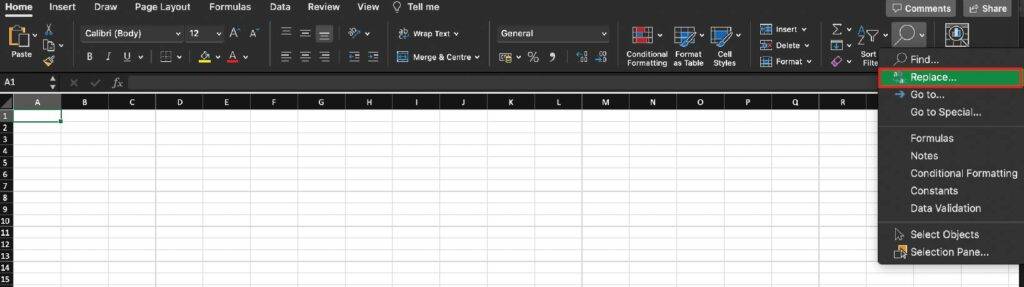
Click the ‘Find and Select’ tool in the home tab
Select ‘Find’
Type out the text you’d like to find in the ‘Find what’ box
Click ‘Find Next.’ This will enable Excel to jump to the first occurrence of the word, phrase, or value you have entered
To jump to the next occurrence, click ‘Find Next’ again
If you’d like to see all the instances at once you can click ‘Find All’
To find a specific word or number you’d like to update you can use the Replace function. To do this go back to the Find and Select tool. This time you’ll:
Select ‘Replace’
Type the text or value you’d like to replace in the ‘Find what’ box
Add the replacement text in the ‘Replace with’ box
Click the ‘Find Next’ button
5 Functions to use in Microsoft Excel:
As mentioned earlier, a formula is an equation that saves you a lot of time. You can perform calculations, manipulate data and so much more. These are implemented within the cell you are working with or in the ‘Insert Function’ bar found at the top of your screen. With so many formulas out there, we’ve given you the basics to get you started.
1. SUM
A very important formula, and with good reason, SUM is used to add the values of different cells together.
Examples:
= SUM (C3:C4)
= SUM (B2: B5)
The digits C3 and C4 represent the cell that the number is in. By presenting them as (C3:C4) you are telling Excel that you want it to add these specific numbers together. Make sure whenever you use the SUM formula that you include an = sign before each set of numbers.
2. AVERAGE
The AVERAGE function is used to do what the name suggests, calculate the average of a set of selected numbers.
Examples:
=AVERAGE (D3, D7, D8)
=AVERAGE (B2, B4, B6)
As you can see, this formula is similar to the SUM formula in that it uses the same = symbol and uses the name of each cell to calculate the average. The formula differs however whereby this formula uses commas ( , ) instead of colons ( : ) between the numbers.
3. COUNT
The COUNT function is used to count the number of cells in a range that contains a number. It’s important to note that the count function doesn’t count cells that are blank and cells that don’t have numbers in them.
Examples:
=COUNT (D1:D4)
=COUNT (B1: B9)
As you can see this formula includes colons like the SUM function. Make sure you select your starting number and end with the number you’d like to count up to.
4. SUBTOTAL
Another extremely useful formula, SUBTOTAL shows you the subtotal of the data in the spreadsheet. This will all depend on what calculation you’d like to see. You can choose to find out the average, count, max, mix sum and more.
Examples:
=SUBTOTAL (1, A3: A6)
=SUBTOTAL (4, B3:B7)
As you can see above each formula has a different number present before the cell numbers. These numbers represent different functions that you would like to find. 1 is used to find the average and 4 is used to find the maximum number value in the range of cells you have selected.
5. MODULUS
In the case where you’d like to divide a number in a cell by a certain number and then keep the remaining numbers left over in the cell then you use MODULUS.
Example:
= MOD (B2, 3)
In this example, A2 represents the cell of the number you’d like to divide and 3 is the number we are using for the division. For example, if we have the number 10 in that cell, we are dividing 10 by 3. What will be left over after the calculation is 1 because 9 is the number of times 3 fits into 10 and when we minus 9 from 10 we get 1.
The Best Shortcut keys for Microsoft Excel
The truth is you may be wasting more time than you need to when completing any number of tasks in Excel. This may be because you don’t know simple shortcut keys that are designed to make your workflow quicker and more efficient. We’ve broken down all of the essential Excel shortcut keys that you need to learn to become an Excel Whiz in no time.
Cell Formatting Shortcut keys:
F2: to edit a selected cell
Ctrl + C: to copy a cell
Ctrl + P: to paste a cell
Ctrl + I: to make the font italic
Ctrl + B: to make the font bold
Alt + H + A + C: to center align the cell content
Alt + H + H: to fill with colour
Tab: to move to the next cell
Shift + Tab: to move to the previous cell
Ctrl + Shift + Right Arrow: to select all the cells on the right
Ctrl + Shift + Left Arrow: to select all the cells on the left
Ctrl + Shift + Up Arrow: to select all the cells above the selected cell
Ctrl + Shift + Down Arrow: to select all the cells below the selected cell
Alt + H + B: to add a border
Ctrl + Shift + &: to add an outline to a selected cell
Ctrl + H: to display Find and Replace
Workbook Shortcut keys:
Ctrl + N: to create a new workbook
Ctrl + O: to open an existing workbook
Ctrl + S: to save a workbook/spreadsheet
Ctrl + F4: to close Excel
Ctrl + W: to close your current workbook
Ctrl + Page Down: to move to the next sheet
Ctrl + Page Up: to move to the previous sheet
Alt + M: to go to the formula tab
Alt + A: to go to the data tab
Alt + W: to go to the View tab
Alt + M: to go to the formula tab
Row and Column Formatting Shortcut Keys:
Shift + Space + Ctrl + – : to delete a row
Shift + Space: to select the entire row
Ctrl + Space: to select the entire column
Ctrl + 9: to hide a selected row
Ctrl + Ctrl + Shift + 9: to unhide a selected row
Ctrl + 0: to hide a selected column
Ctrl + Shift + 0: to unhide a selected column
Alt + Shift + Left Arrow: to ungroup rows or columns
Alt + Shift + Right Arrow: to group rows or columns
This may seem like a lot to remember. Luckily, we’ve created a free easy-to-use Excel Shortcut Keys PDF for you to keep and refer to whenever you need. Download it here.
Should you do an online Excel Course?
With so much information at your fingertips, it’s easier than ever to source all the information you need on the internet. However, it’s also beneficial to find an effective online Excel training course. This is because online courses give you comprehensive information that is packaged with all the essential skills you need to know all in one place. You’ll cut down on the frustration of having to find different bits of information in different parts of the internet. Online Excel Courses can either be free or paid for and vary in cost. We’ve put together a few of our favourites to help you find one that works for you.
4 of the best Online Excel Courses for beginners:
1. Udemy
Another great option is to develop your skills with Udemy. Known as one of the largest online learning platforms, Udemy has significantly grown in popularity worldwide for its wide range of courses and convenience. With over 213 000 courses on various topics and ideas, you will be spoilt for choice on which Excel course to choose from. If money is a problem, Udemy offers 600 online courses for free. However, you won’t receive a certificate of completion for these free options.
2. Coursera
Coursera was launched back in 2012 by two Stanford professors. From the beginning Coursera partnered with well-known global institutions, such as Duke and Johns Hopkins, to offer free and paid education to the world. Since then, they have partnered with big names such as the California Institute of Technology, Emory University, and more. The platform hosts a variety of courses in many different disciplines. You can join any entry-level course that falls within 4 to 12 hours for free, however, enrolling in a degree will come at a cost. Another thing to keep in mind is that most of their beginner courses require you to have some knowledge of the content before you begin.
3. Alison
Founded in 2007, Alison hit the internet with the goal of providing students with free education so they can work effectively in the workplace. To make this happen Alison makes an income through their pay-per-click-advertising model and their membership options. The platform is easy to use and follows a self-pacing process that is suitable for the learning from-home environment. One thing to keep in mind though is that some of these courses aren’t fully optimised for mobile use. Many of the courses are Flash based so if your phone doesn’t support Flash, you may be out of luck.
4. Edge ICT
The information provided in this blog is just the tip of the iceberg of what Edge ICT can offer. We have three extensive Excel training courses for each learning level. For all the newbies, we have an Introduction Level Excel Course that is perfect for those starting out. You don’t need any prior knowledge of Excel to participate. For those that have been using the platform for a while but want to enhance their skills a bit further, we offer an Intermediate Level Excel training course. And for those that want to become professionals in Excel, we offer an Advanced Level Excel Course that will take your productivity to new heights.
Next Steps:
After getting up to date with all the important Excel skills, formulas, and shortcuts you may feel like you’re ready to commit to an online Excel learning course. Edge ICT offers Excel courses for every learning level from beginner right up to advanced-level professionals. Our courses are self-paced, run from our very own online learning platform, and don’t require any prior learning to enrol. Get in touch with us today to make sure you grab this opportunity to stand out to employers!